Configuring Settings in Horus Wall Enterprise
To configure the wall, you need to access the "Settings" tab. This function allows you to configure the system based on your choices, assigning necessary and additional information according to your preference.
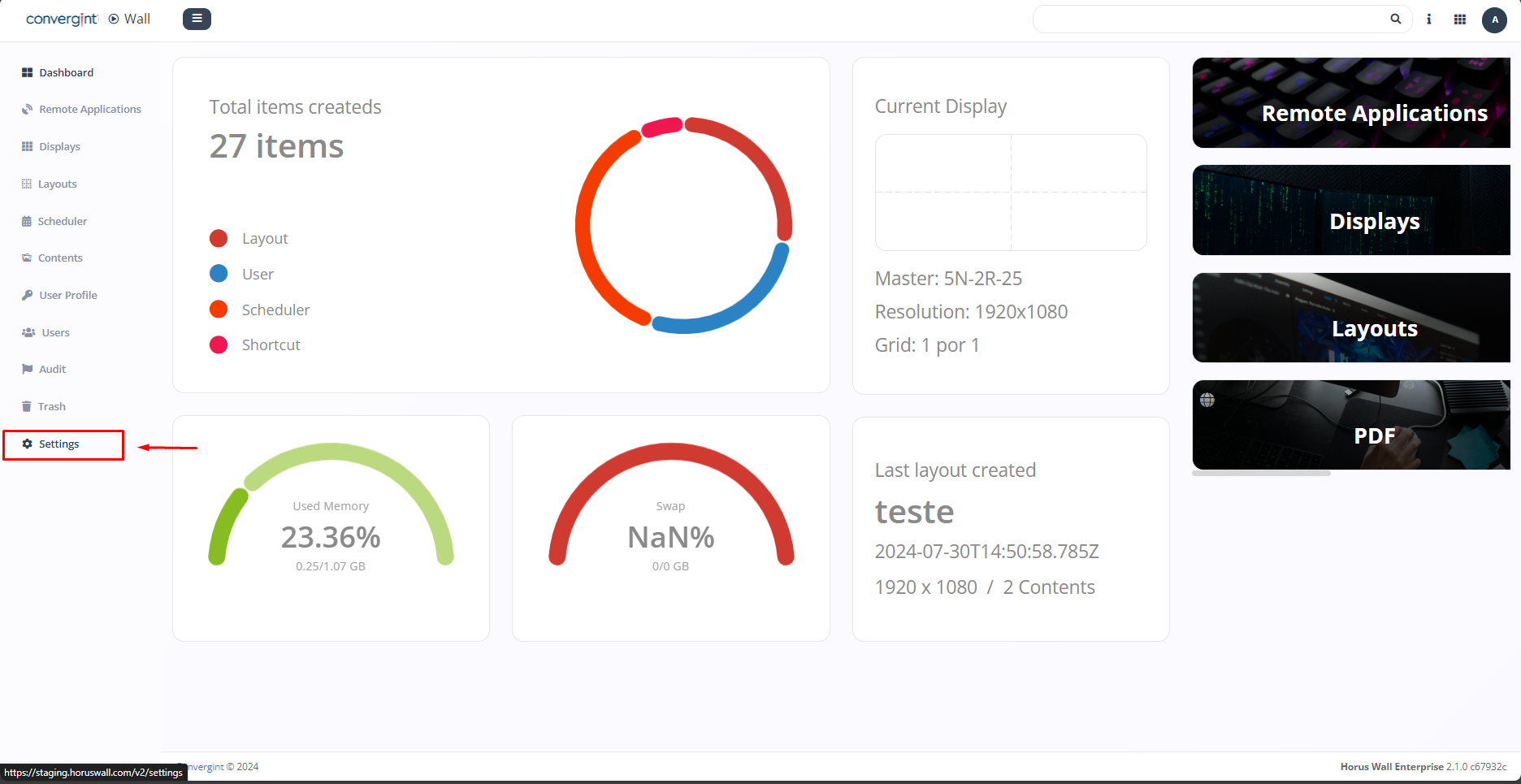
When you click on "Settings", the system will open a screen that allows you to configure the following sections: General Settings, Standard Remote Applications, Content Manager Module Settings, Collab Module Settings, Turnserver Settings, Digifort Configurations, Milestone Integration, LDAP Settings, SSO Settings, Backup & Restore and Audit Settings. Respectively.
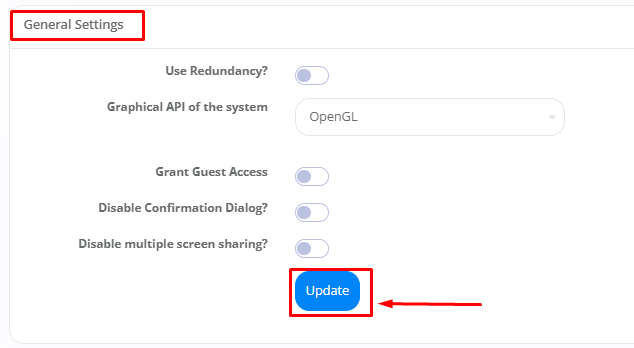
• General Settings: In this section, you can include and define the name of the agency, the Google Maps and TomTom API keys, as well as TomTom's minimum and road zoom, and reasons for canceling tasks. This allows for efficient management and adapts to your preferences. Once configured, click on "Update".
• Standard Remote Applications: In this section, you can include the desired navigation under "browser". This allows for efficient management and adapts to your preferences. Click on "Update".

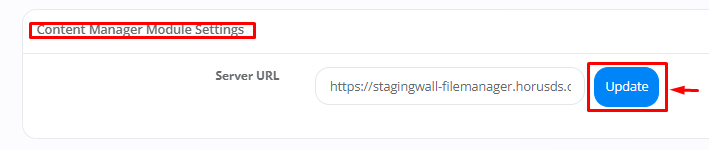
• Content Manager Module Settings: By accessing this option, you can adjust and customize the settings involving content management, including the assignment of the server URL. Once configured, click on "Update"
• Collab Module Settings: By accessing this option, you can adjust and customize the settings involving Collab, including the assignment of the server URL. Once configured, click on "Update".

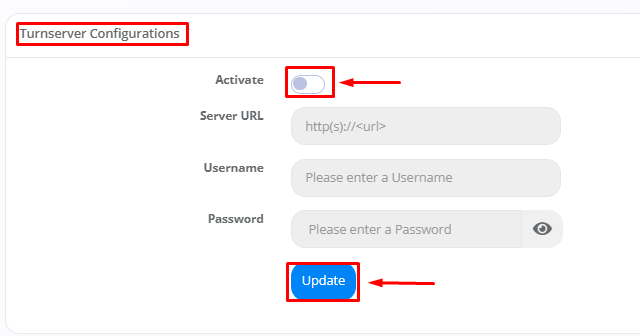
• Turnserver Settings: In this section, you can include the assignment of the server URL, the username and password of your choice. This allows for efficient management and adapts to your preferences. To get what you want, simply click on the "Activate" button to configure. Once configured, click on "Update".
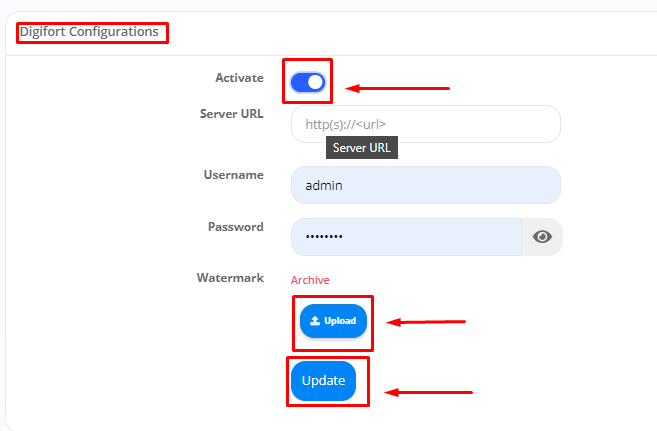
• Digifort Configurations: Configuring integration with Digifort allows you to assign the server URL, username and password according to your preference, as well as offering the option of uploading in "watermark", facilitating efficient management tailored to your needs. To activate the desired settings, click on the "Activate" button and, once configured, finish by clicking on "Update".
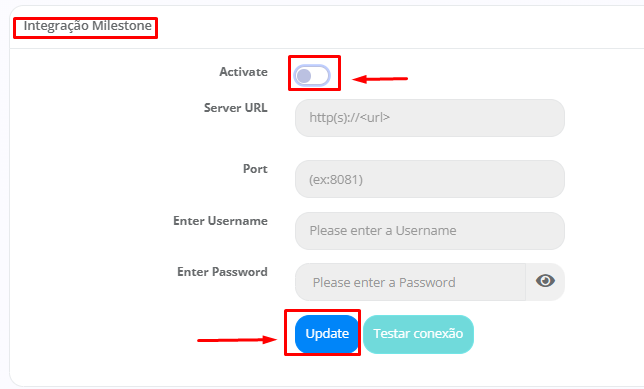
• Milestone Integration: Integration with Milestone allows you to assign the server URL, WebServer port, username and password to your preference, providing efficient management tailored to your needs. To activate the desired settings, click on the "Activate" button and, once configured, finish by clicking on "Update".
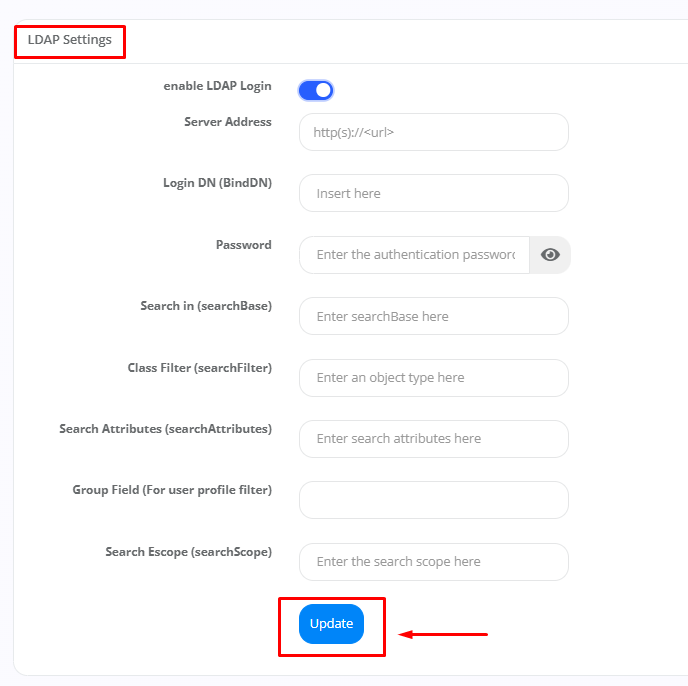
• LDAP Settings: By accessing this option, it is possible to activate the LDAP (Lightweight Directory Access Protocol) login, consequently assigning and entering the appropriate settings, such as: Server address, Login DN, Password, Search in (SearchBase), Class filter, Search attributes and Search scope. This makes it easier for users to find certain information. Once configured, click on "Update".
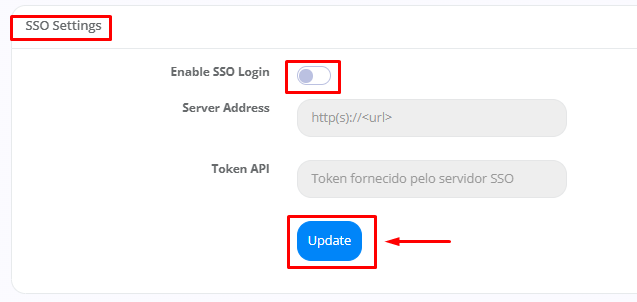
• SSO Settings: In this option, you can enable SSO (Single Sign - On) login by providing and declaring the appropriate settings, such as: Server address and API token. This allows users to access the platform or applications with just one set of credentials. Once configured, click on "Update".
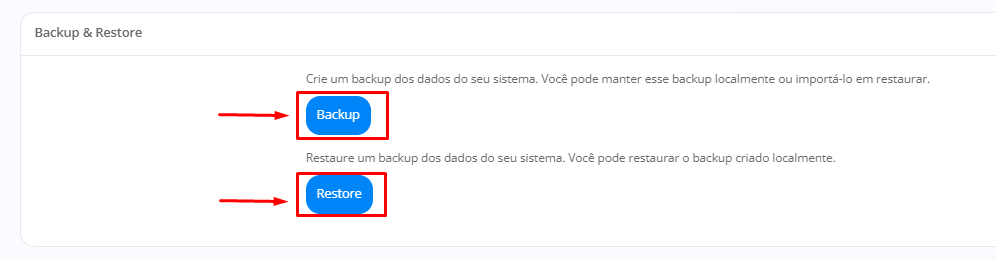
• Backup & Restore: To create a backup of your system data, click on "Backup". You can choose to store this backup locally or import it for later restoration. To restore a backup of your system data previously created locally, click on "Restore".
• Audit Settings: By accessing this option, you can adjust and customize the settings involving the audit, including the assignment of the server URL. Once configured, click on "Update".
