Uploading Files
The first step in uploading a file is to access the "Contents" tab. This function allows you to manage media files such as images, videos, PDFs and more, making it easier to include content in the layout or in remote applications.

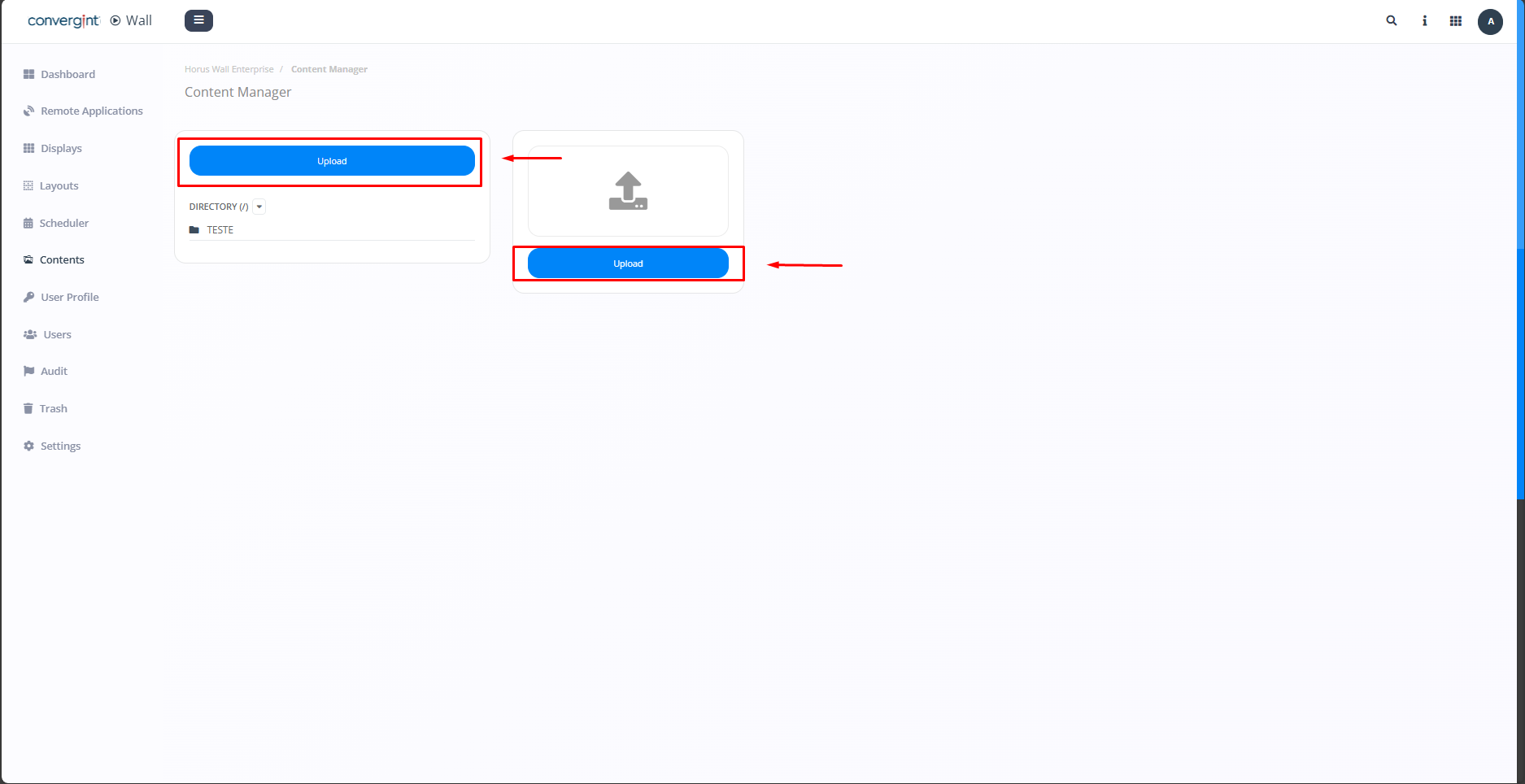
After accessing the "Contents" tab, the system will open the screen, where we will first define by clicking on "Upload." Both options below are valid for uploading a file, depending on your preference.
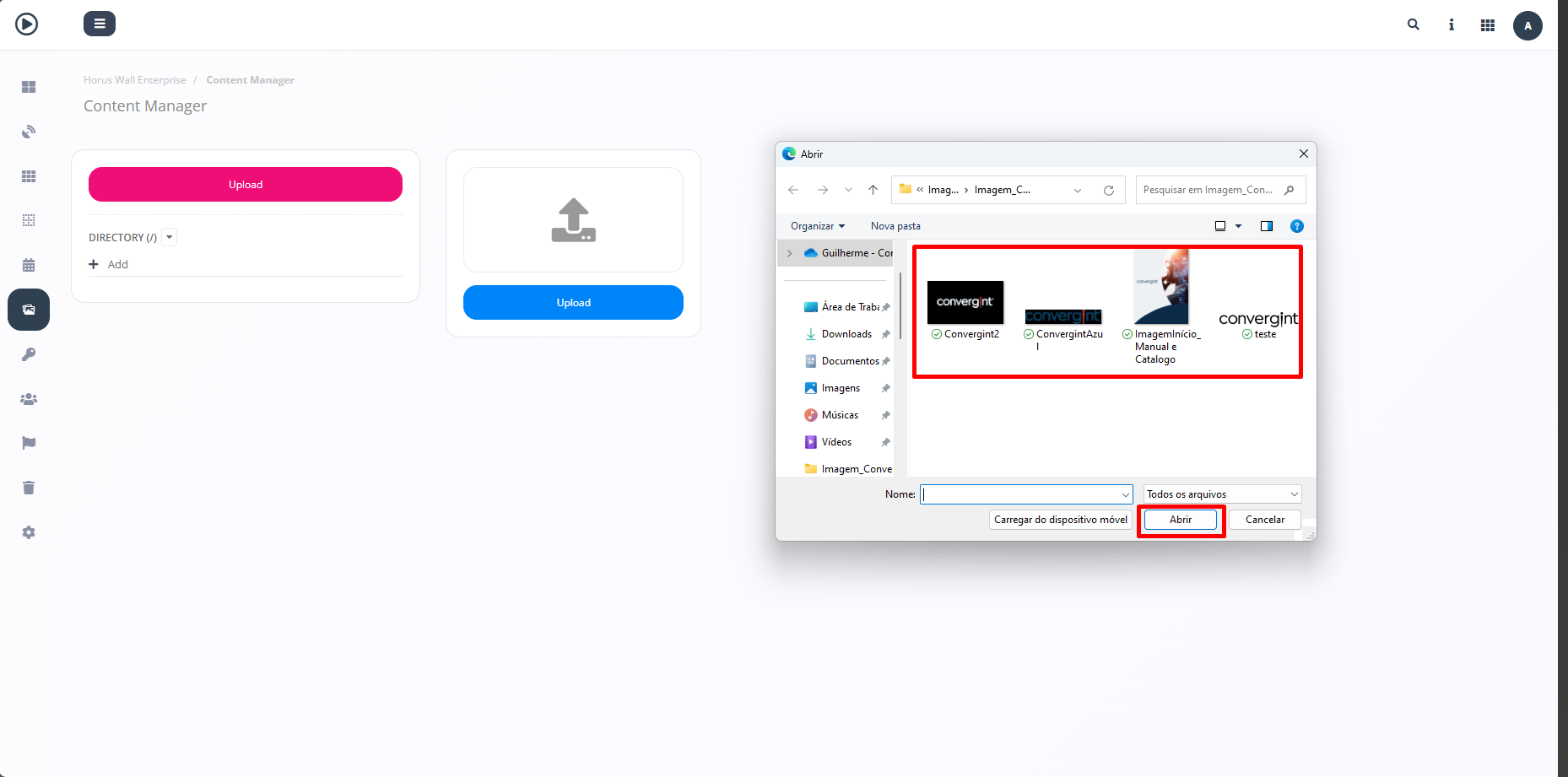
When you click on the Upload button, you will need to select a media file from your computer's file storage, then click on "Open" (highlighted). This will transfer the file to Horus Wall Enterprise.
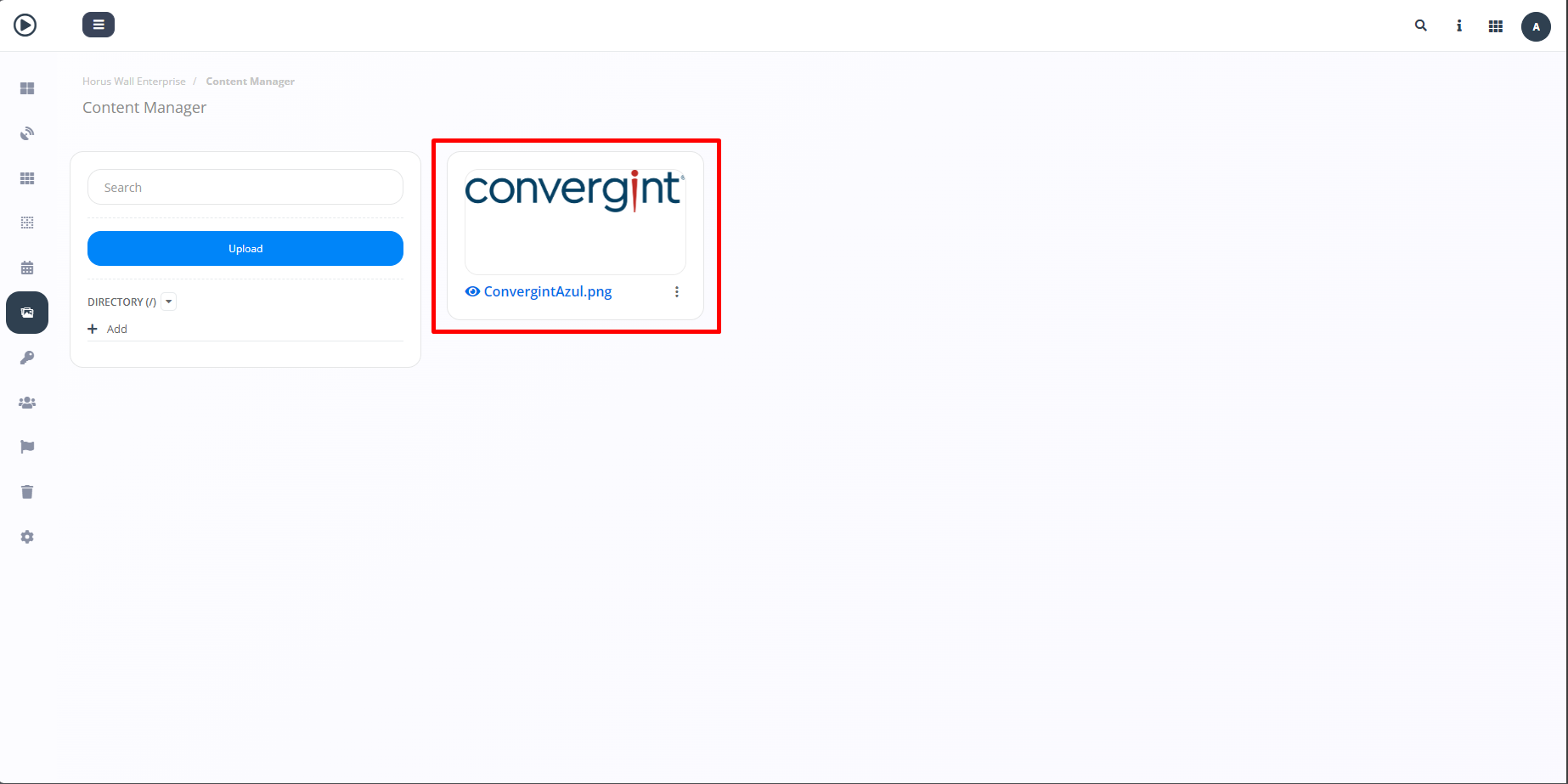
Then the file you selected will be added to the contents (highlighted).