Removing a Layout From the Schedule
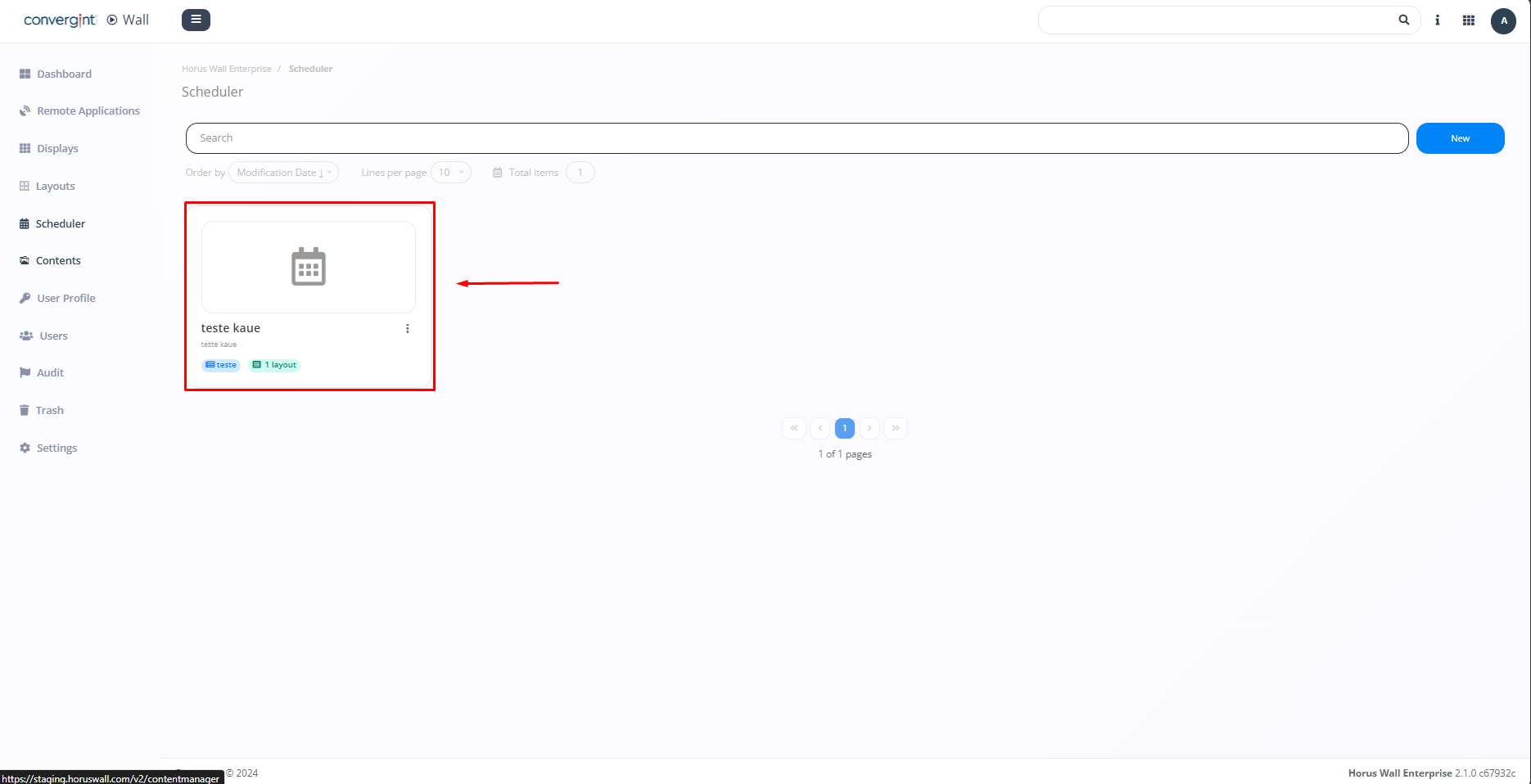
By following the previously described steps, the schedule will be registered. To remove a layout from the schedule, you need to access a previously created schedule where you want to remove the associated layout.
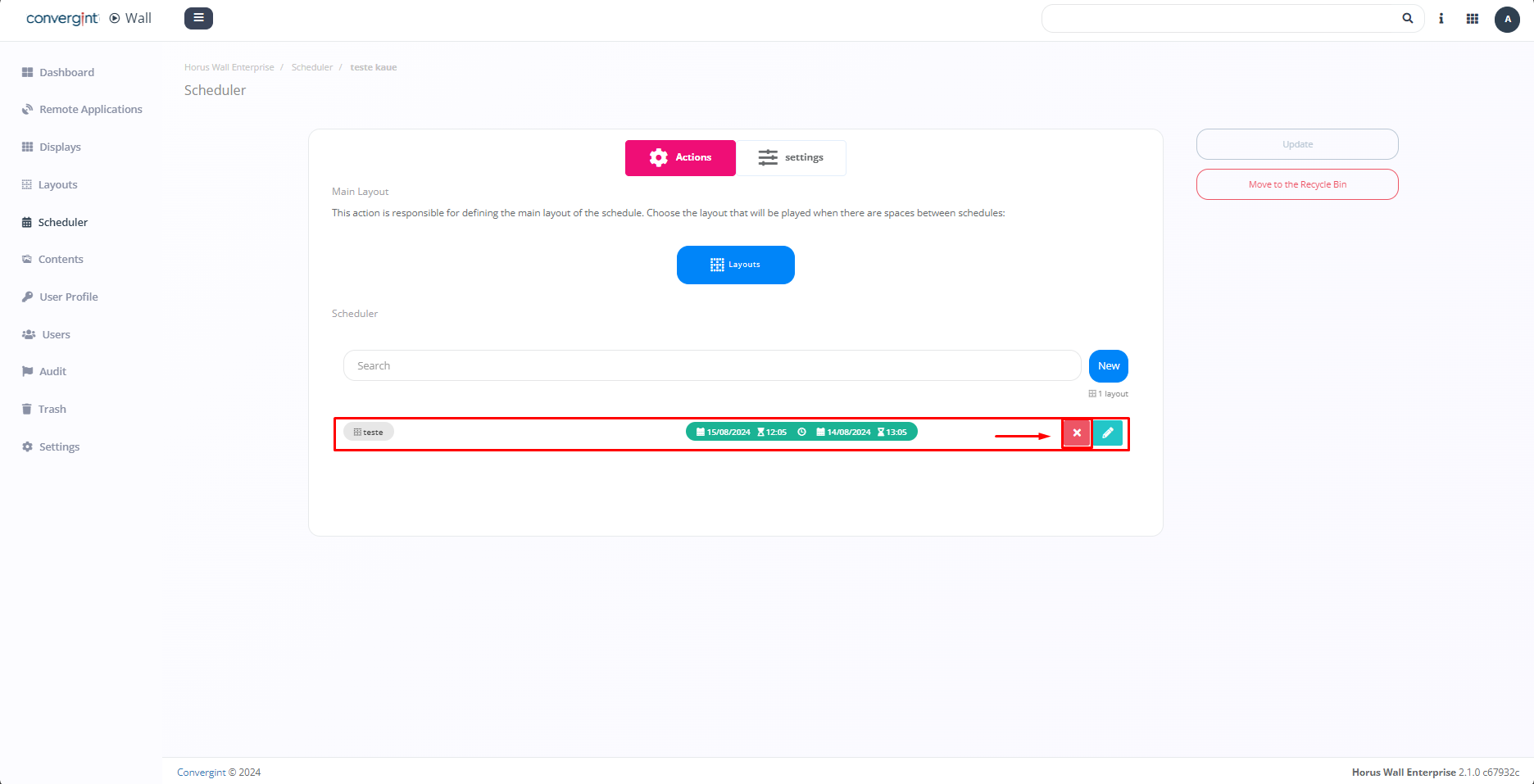
Upon accessing it, the system will display the scheduler interface, where you can remove the layout from the schedule by clicking the remove icon (highlighted).
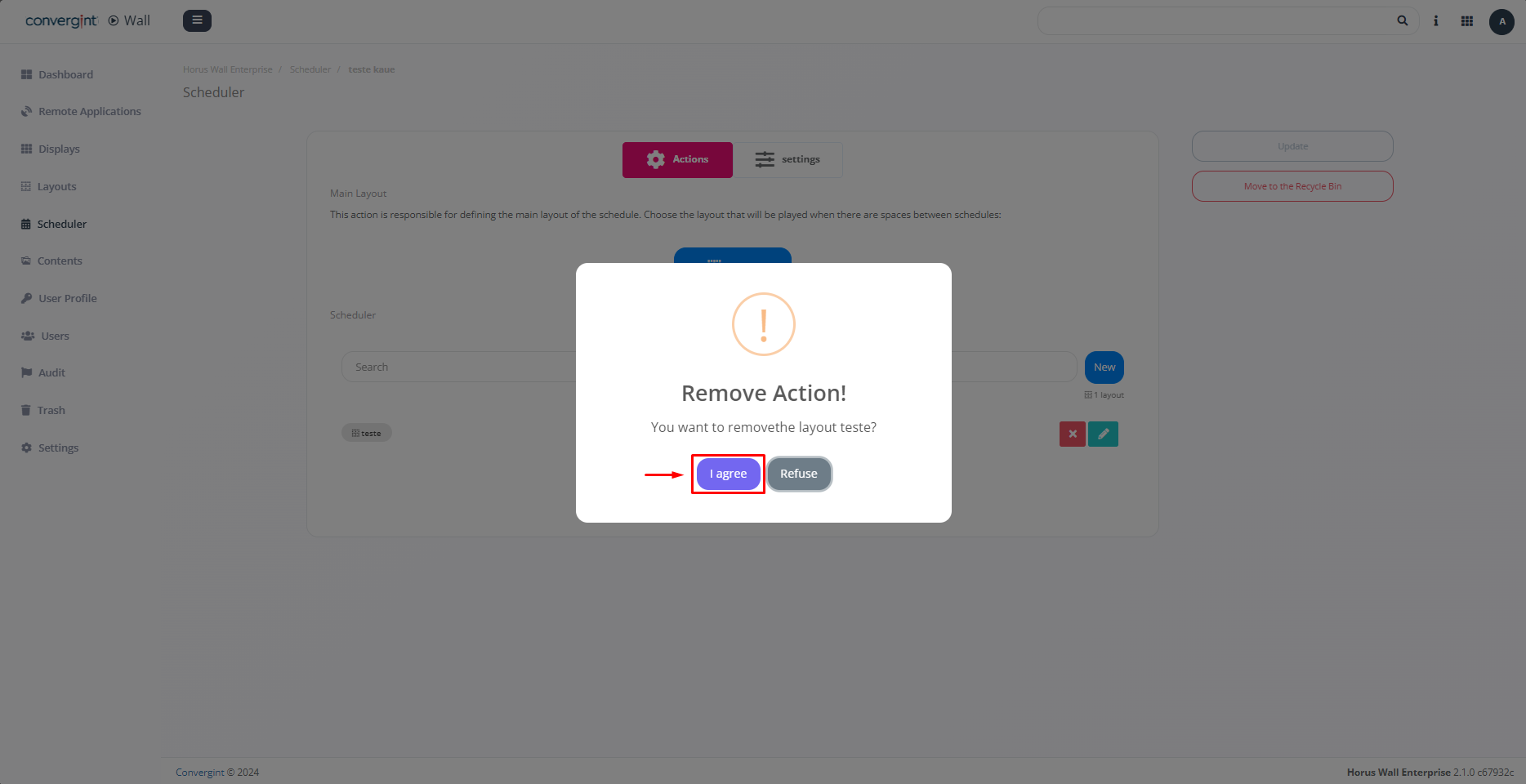
By selecting the option, a pop-up will appear requesting confirmation before proceeding with the removal of the layout from the schedule. Then, click "I agree" to complete the removal.
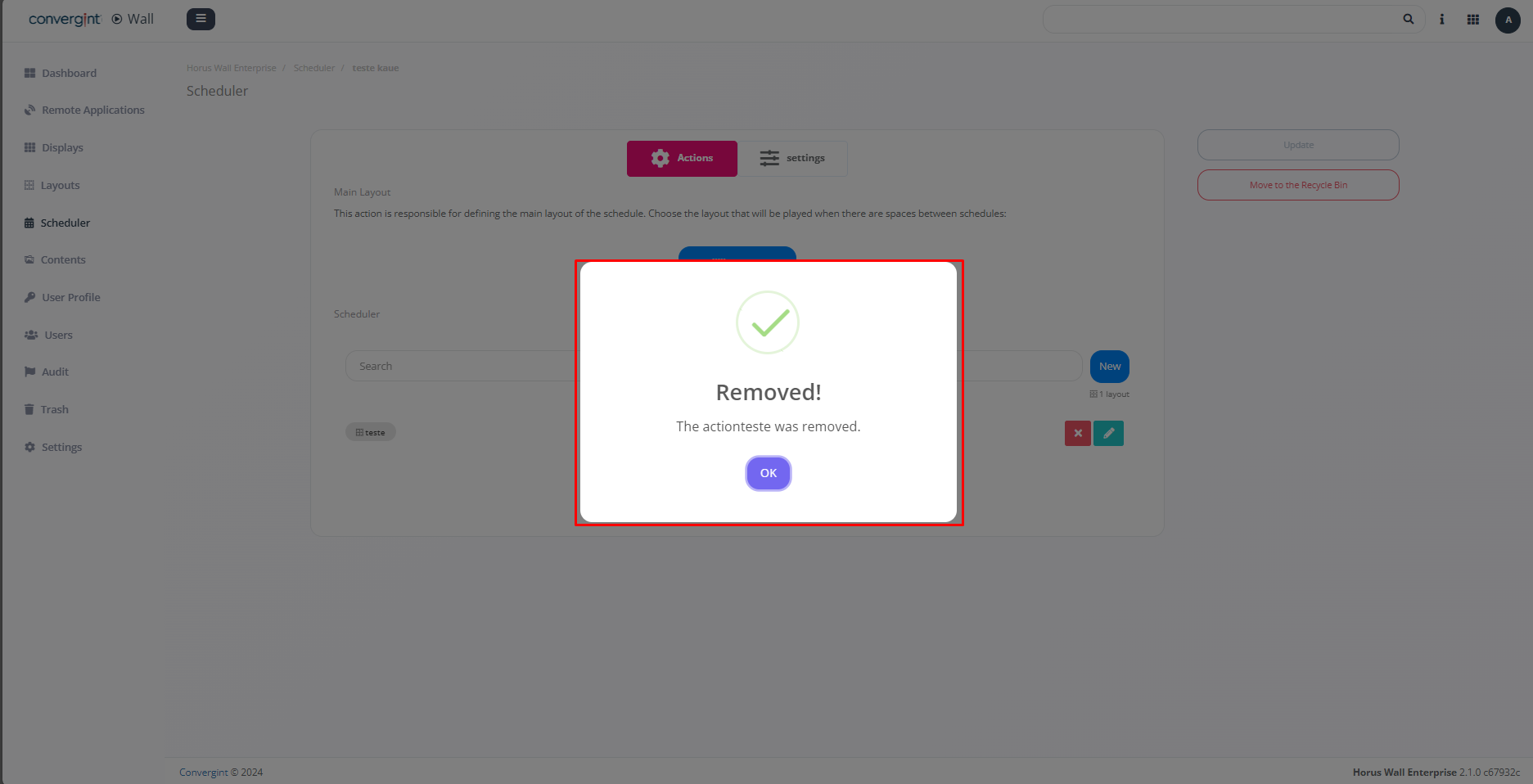
Upon clicking "I agree," the layout will be removed (highlighted).