Change of Scheduling Period
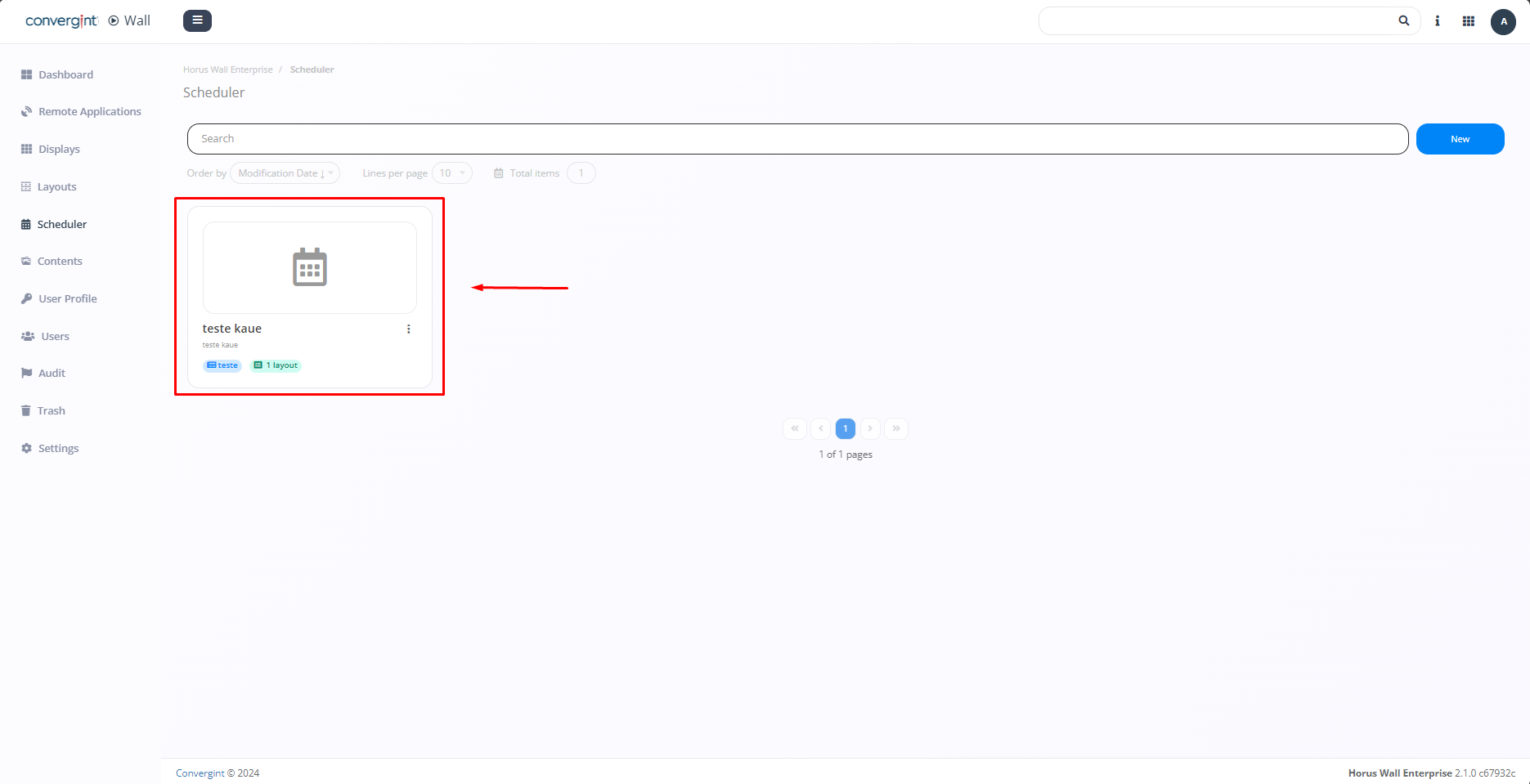
By following the steps previously described, the schedule will be registered. To change the periods of a previously assigned schedule, you need to access a scheduler that was created in advance, where you want to modify the described periods.
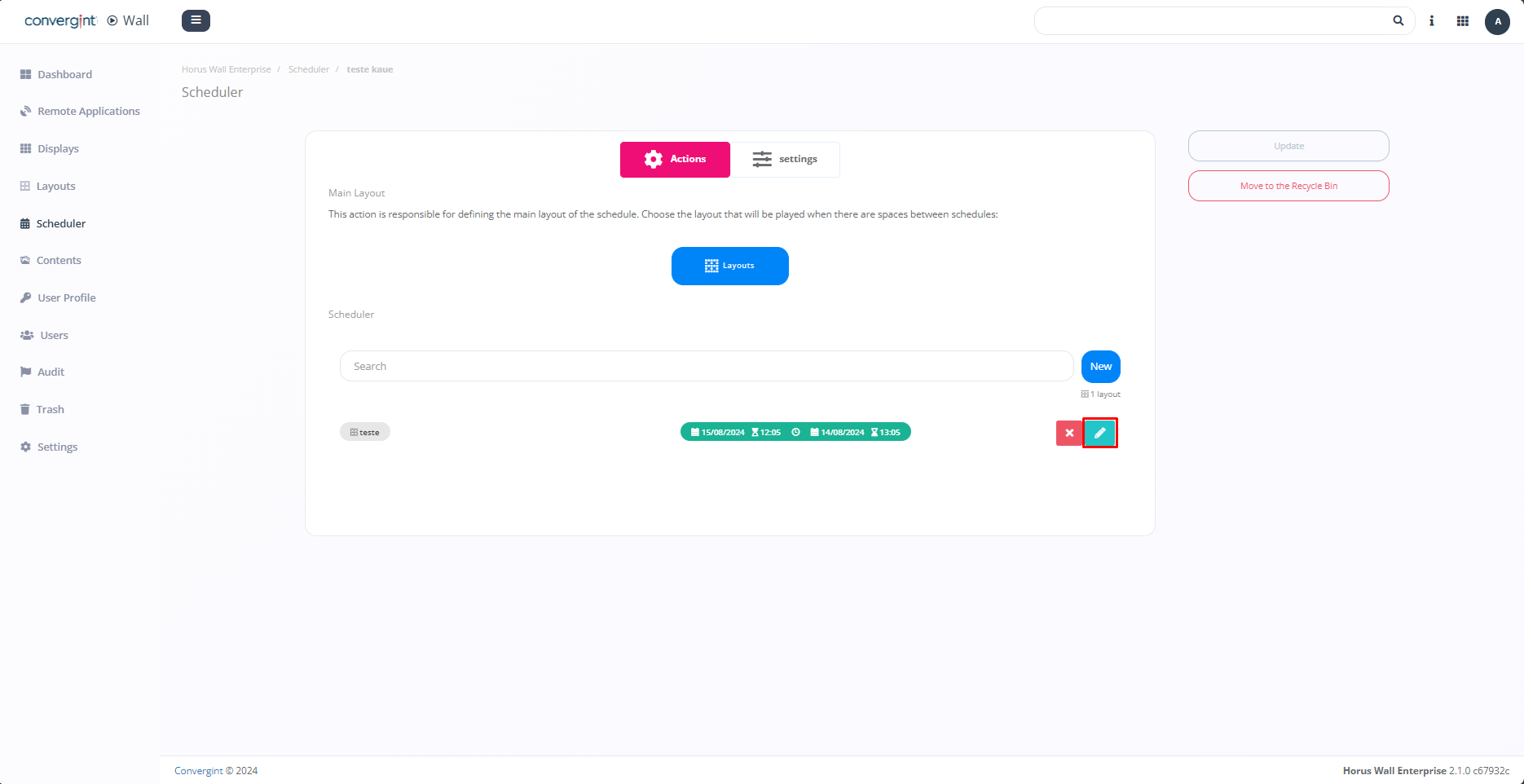
After accessing a scheduler, the system will display the interface for adding campaigns to the scheduler, where you can modify the periods by clicking the button with a pencil icon (highlighted).
Right after clicking the button marked in the image above, the screen will be displayed, offering a variety of templates that can be used to assign or change dates and times for the chosen layout to be displayed (highlighted). After editing, simply click the "Update" button to save the changes made to the display period.
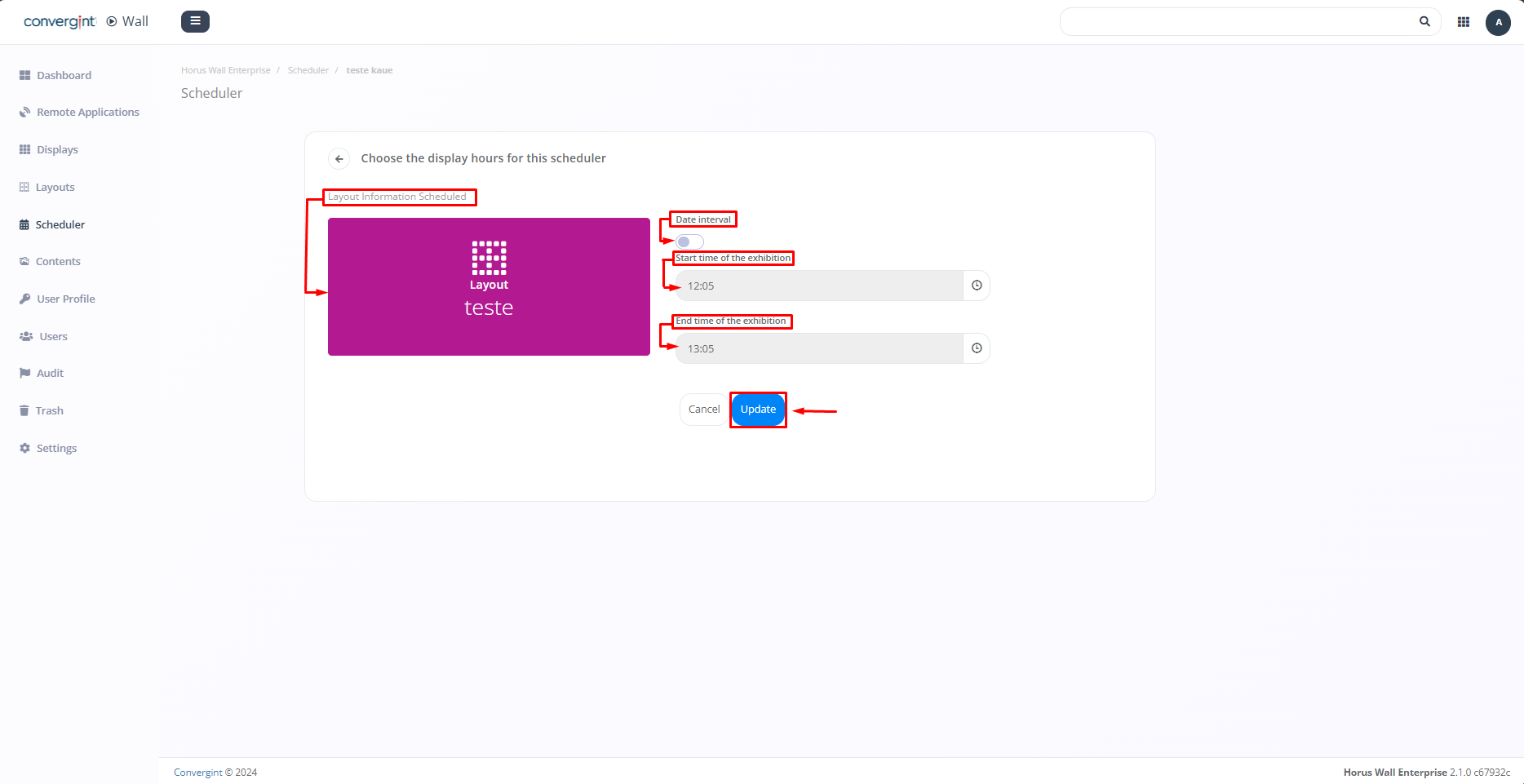
By clicking the "Update" button, the system will recognize the performed update, adding or changing the layout's dates and times.
